The first thing that needs to be setup is a Shared Mailbox in your Office 365 tenant. This has already been done in this example.
1. Open Outlook 2016 and click on People in the bottom left
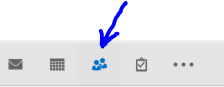
2. You will now see contacts associated with your email addresses

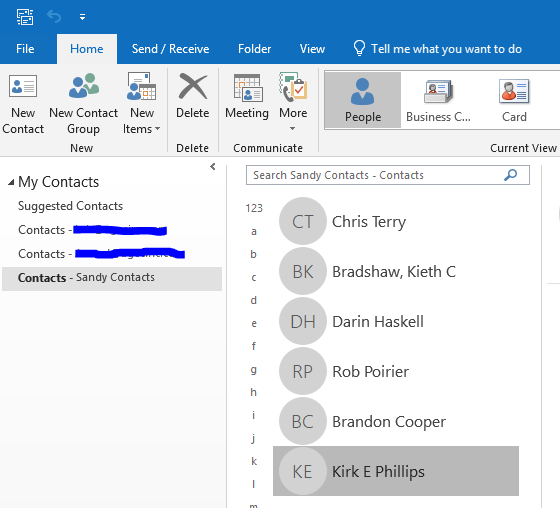
3. Notice that the focus is on Contacts – Sandy Contacts. This is where we’re going to copy personal contacts to for Customers and Vendors that we want to share with others in Sandy. You will see Sandy if that is your location. If you are in another location you will see that location.
4. First highlight a contact in the local Contacts folder you want to copy to shared contacts.

5. Next you right click on the Name, choose Move, then Copy to Folder

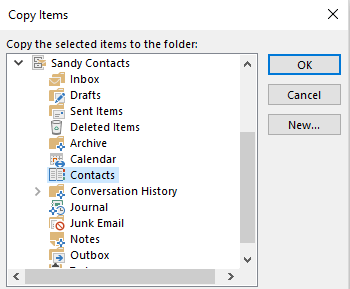
6. Now you select Sandy Contacts and click OK
Now you will notice that the contact Kirk E Phillips has been copied to the Sandy Contacts folder
 INTUITIVE TECHNOLOGIES