I’m sure to some the words Citrix Workspace might seem familiar especially if you are familiar with using Citrix Receiver. This is an important element in running virtual applications. Citrix Receiver was rebranded as Citrix Workspace by Citrix in 2018
If you don’t have receiver on your computer Citrix has embraced another technology called HTML5. This allows you to run your apps in the browser. This works great if you’re using a kiosk or a public computer that you cannot or don’t want to install workspace on. HTML5 can also be a workaround if you are using a docking station that is not compatible with citrix and apps behave odly.
Behaviors are different: There are benefits to each of them but the important thing is what is best for you and how you need to work to get your job done.
Workspace: When launching apps in Workspace they are seamless to your PC and appear if they are locally installed.
HTML5: When launching apps with HTML5 they open a new tab in your internet browser and run inside of your browser.
Making the Switch: Normally people use the default unless the way they like to do it changes all of a sudden. I’ve seen this when there’s an update on the OS or the browser. So here’s the steps
First: Open the Web Browser and browse the Netscaler Gateway Site
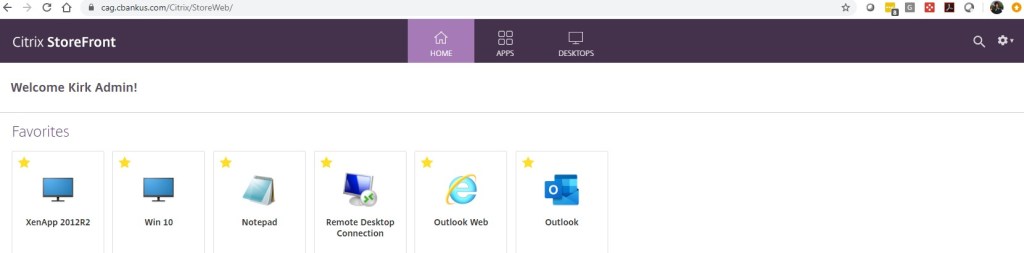
Second:Click on the Gear Icon in the top right of the Citrix Storefront Web Page
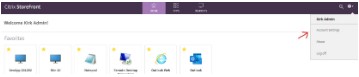
Third: Click on Account Settings
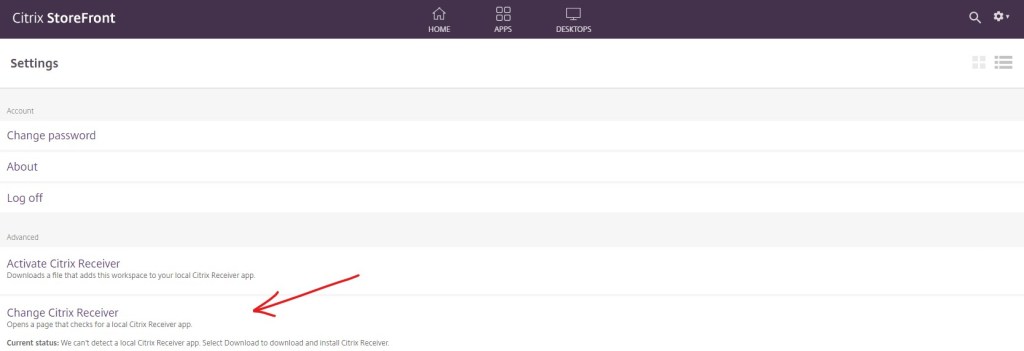
Fourth: Click on Change Citrix Receiver
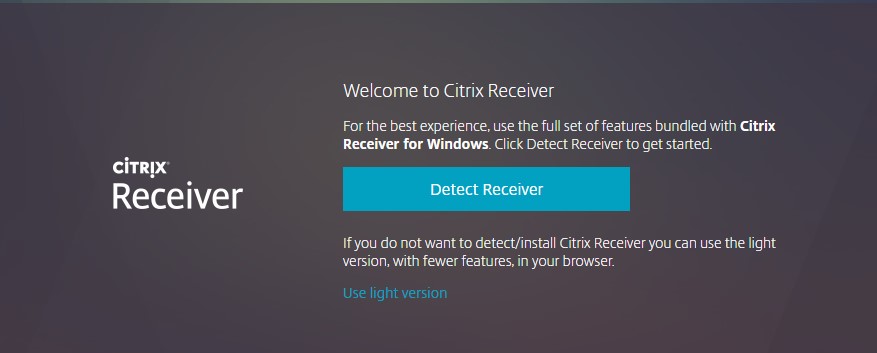
Now it’s decision time
HTML5: Click Use light version to use HTML5. You will be returned to the Account Settings page. First notice the message highlighted in yellow. It says “Current Status: “Apps and desktops open in your browser.” Next if you click on Home or Apps on the top it will take you to where you can launch the app you want and it will stay in the browser.

Here is an example of what it looks like when I click on notepad to run it
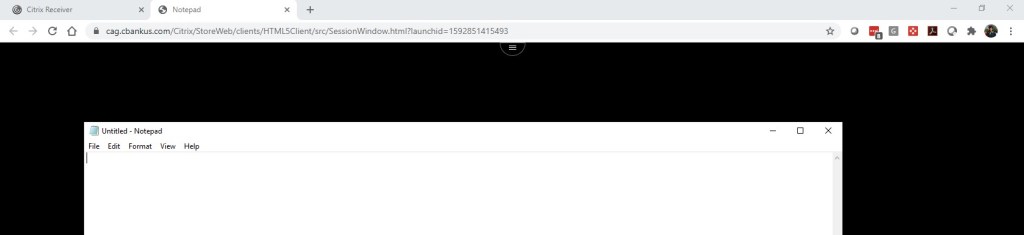
You can see that Notepad opened a new tab in the browser which allows you to keep it there. You can click back on the Citrix Receiver tab to open a different app or desktop.

This time I launched Win 10 which is a Windows 10 desktop. You can see how it opened and is contained within the browser window. Some of the limitations of this is screen resolution can be a challenge and you might not get the complete desktop or app inside the window.
Workspace: Click Detect Receiver to use Citrix Receiver/Workspace. You will be given a choice to download a new receiver or acknowledge that you already have receiver or workspace installed.
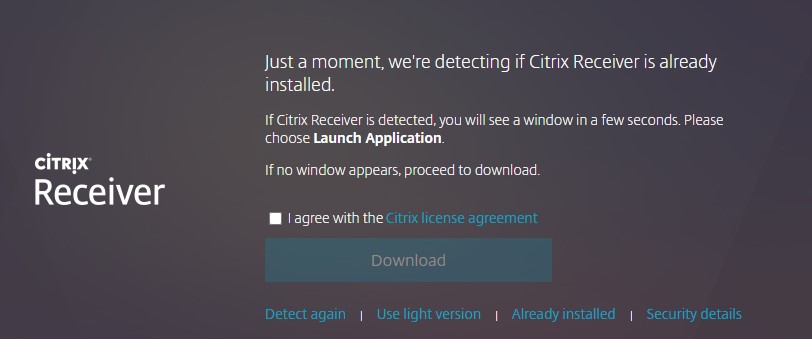
Download: Check the I agree with the Citrix license agreement, then the Download button changes and you can download and install receiver. note: this assumes you have the appropriate rights on the computer to install. When I did this it started downloading Citrix Workspace and showed it at the bottom of my browser
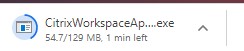
Once it’s downloaded you can click open to begin installation. You can also browse to citrix.com and click downloads and click on the Download Citrix Workspace app to get the latest version https://www.citrix.com/products/receiver.html
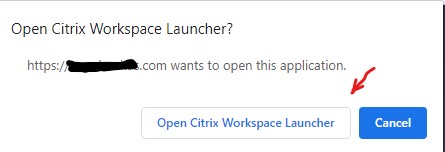
Already have Receiver or Workspace: When you first click on Detect Receiver you may get a popup from your browser asking if you want to open Citrix Workspace Launcher. You can click Open Citrix Workspace Launcher to go to the next step of launching apps
If the version of Receiver or Workspace on your PC was detected as the same version that the system has to offer you will be presented with your apps.
If the version is different you are still at the choice screen
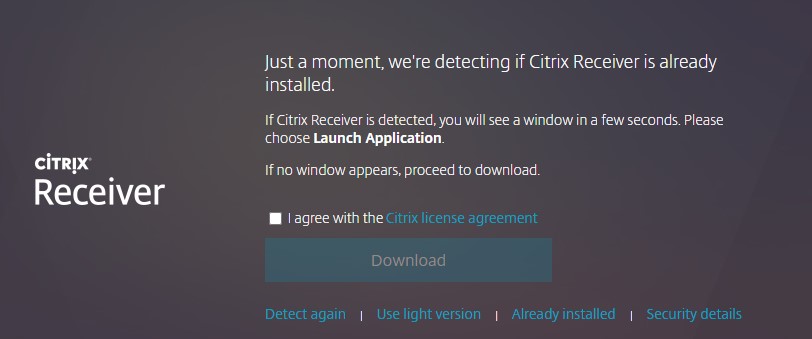
If you want to ignore this to install you can click “Already Installed” and be taken back to the Account Settings page
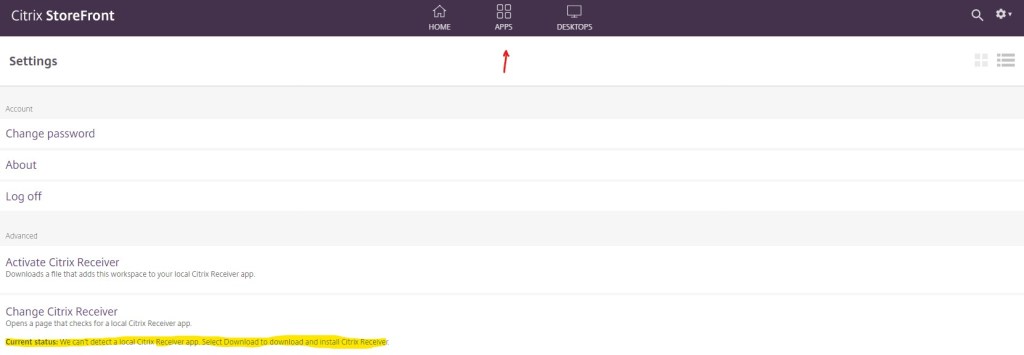
You can click on Home or apps and go directly to the apps page to launch your app. Note: the status at the bottom highlighted. “We can’t detect a local Citrix Receiver app. Select Download to download and install Citrix Receiver”
This can bring alarm but it indicates that there is a mismatch between your version and the version the storefront server is offering. In most cases your applications will launch
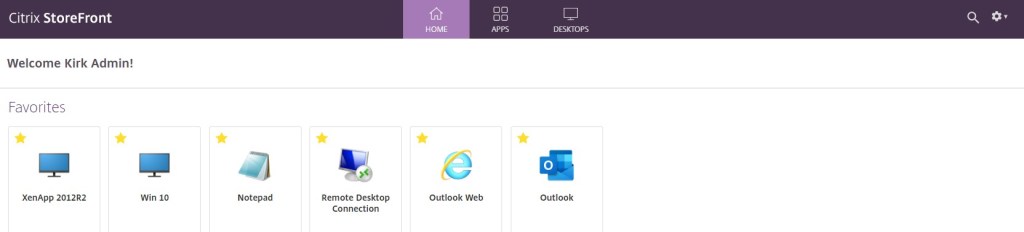
Clicking on Home or Apps at the top will show me my apps. This time when I click in one it will not open in a browser tab but will open as a separate seamless virtual application.
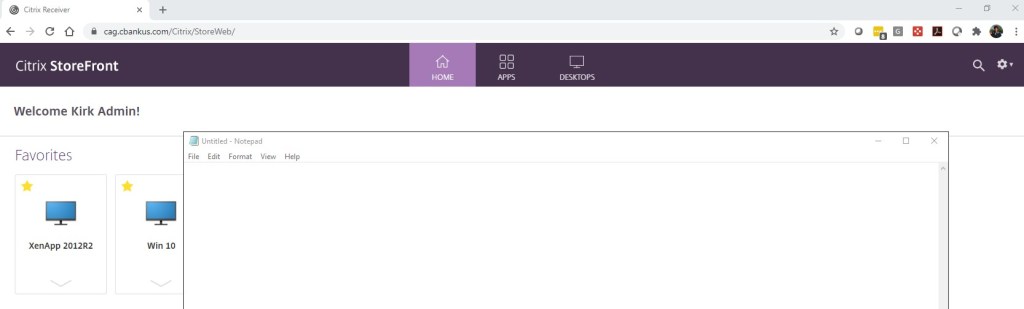
Now notice that notepad did not open in a tab on the browser but opened as a separate application that I can move around my screen and it looks and feels like it’s locally installed.
 INTUITIVE TECHNOLOGIES