If it’s for Free, it’s for me is the old adage, so yes it’s possible to get Sophos Home Commercial Edition for Free.
Is there a catch? Yes. Your employer must already own licenses for you and your PC at work. But if they have then you qualify to install Sophos Home Pro for Free. Sophos wants to protect sources of malware coming into the protected network and see the benefit of making sure you’re protected at home too.
go to https://home.sophos.com if your employer does not own Sophos Endpoint protection licenses.

Go to https://home.sophos.com/employee if they do own licenses.
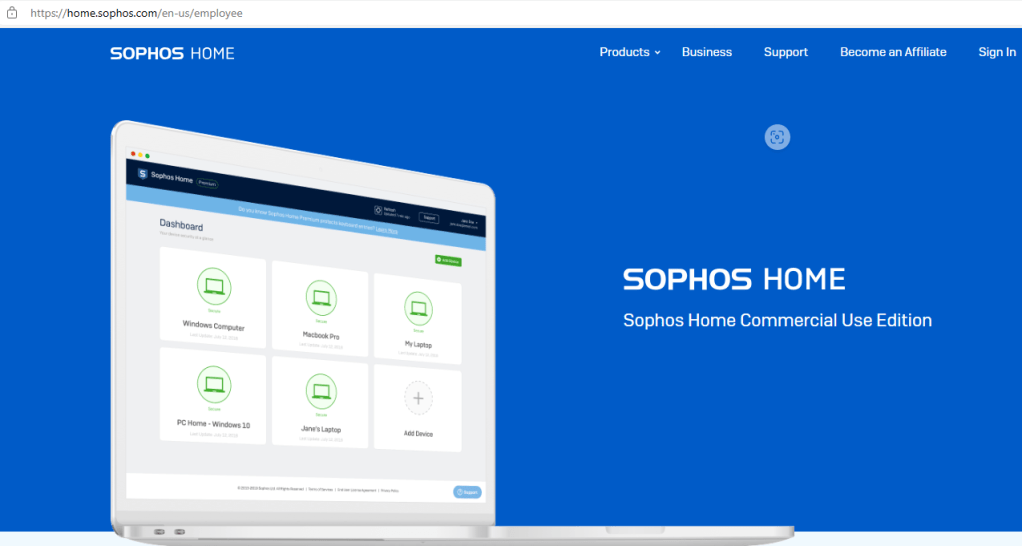
If you qualify as an employee of a Sophos client, click on Sign In. If you don’t click on Free trial. You can get the basic version for free which is still better than most everything out there. You can license it if you decided to. It’s a great deal $59.99 for 10 Computer devices at home.
Scroll down and it will tell you to enter your work email to receive a license.

Enter your work email address and wait for an email to come to your work email address.
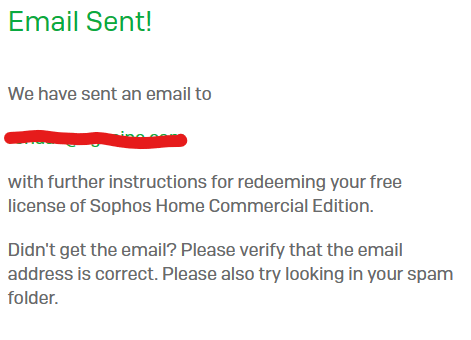
You will receive an email with further instructions. The subject line will be “Your free license of Sophos Home Commercial Edition”
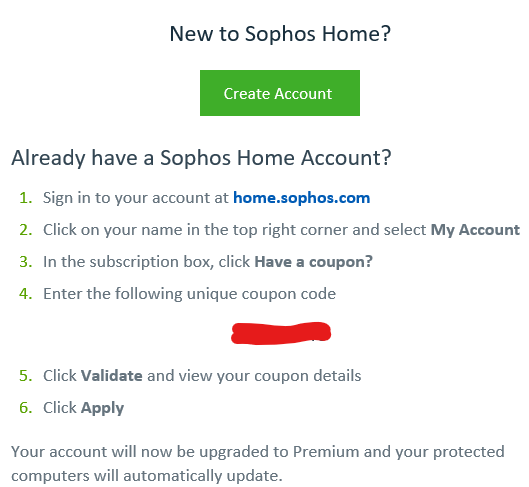
Most will not have an existing sophos home account so click on create account.
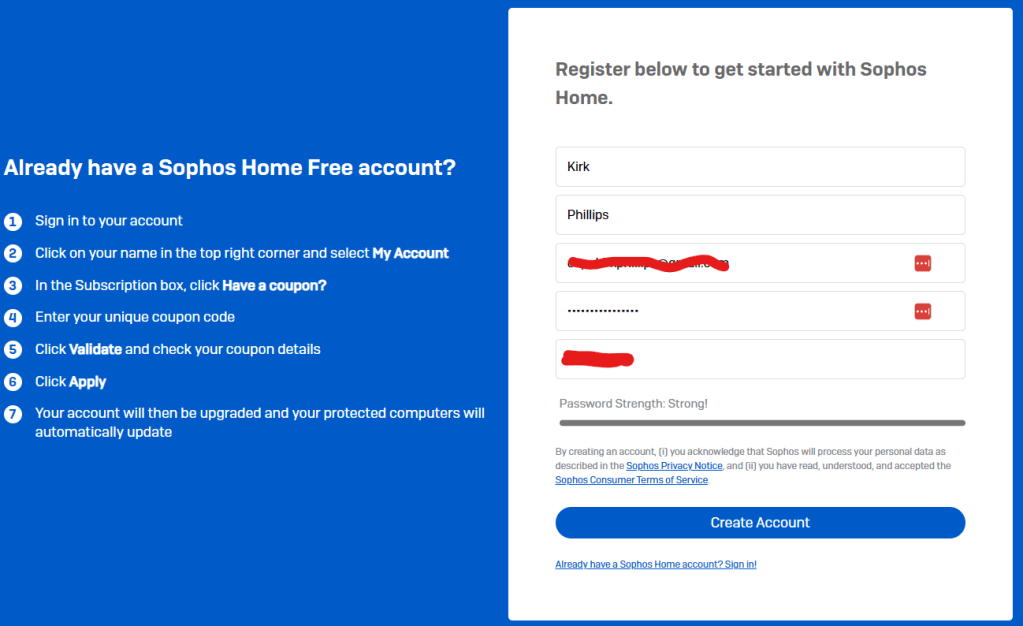
Enter your name, email address and a Strong Password. 12 characters or longer, use Numbers (1-9), Uppercase letters (KEP), lowercase letters (kep) and special characters (!@#$%^&*)
This password should be unique to this website as all passwords should be unique for each site.
I recommend using a password manager tool like lastpass or keeper or have a strategy to remember the different passwords on all the sites you use. Never use the web browser to store your passwords. This is a fairly easy target for hackers to get all of your passwords from.
login to the https://home.sophos.com with the email and password you just setup. You are set to start managing your home.sophos.com account.
If you are upgrading your account check out these steps below.
Click on the top right corner and select My Account

Enter your password and click Unlock to upgrade. Once you click Unlock that banner will go away.
In the Subscription Box, I have a license key, click Have a coupon?
Enter the coupon code and click Apply.
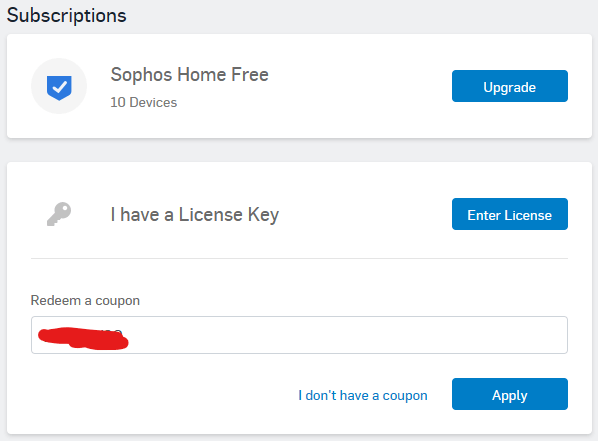
Paste in the coupon code and click Apply
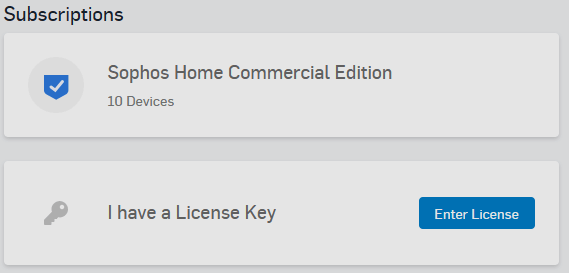
Notice now that the Subscription is now upgraded to Sophos Home Commercial Edition.
Go down to Manage Sophos Home for assistance with configuration.
If you already have an account on home.sophos.com click on Sign In and you will be brought to this sign in screen.
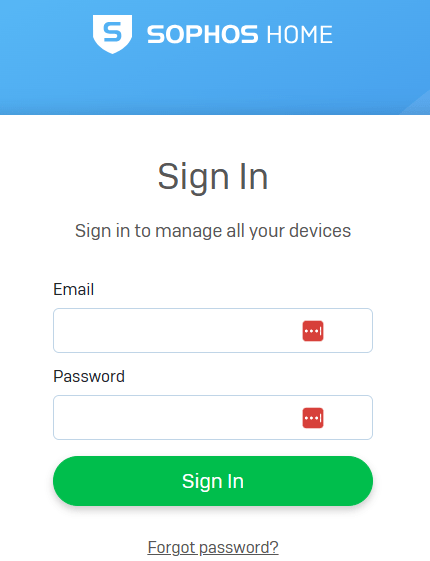

You will now get this popup
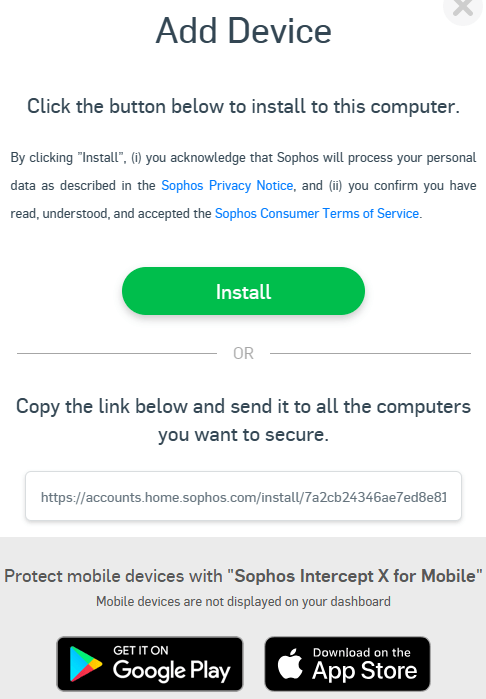
If this is the device you want to protect click install
You can copy the link and send it to others in email or other chat mechanisms.
You can also protect your mobile devices with Sophos Intercept X for mobile.
Once you have installed it on a device you will see this message.
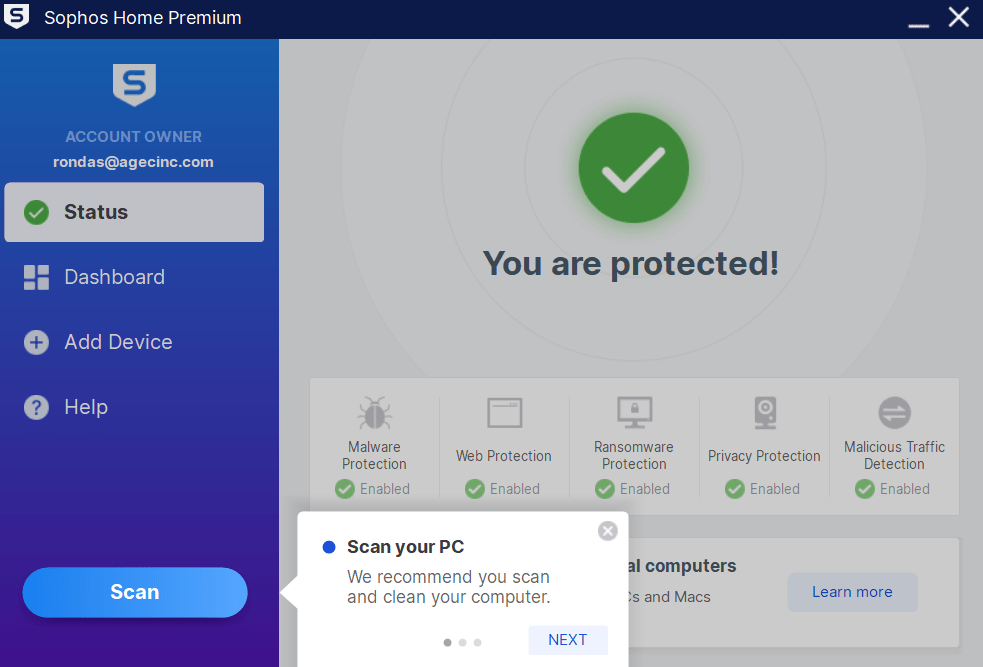
Managing Sophos Home
click on the Dashboard link and you can configure how you want it managed.
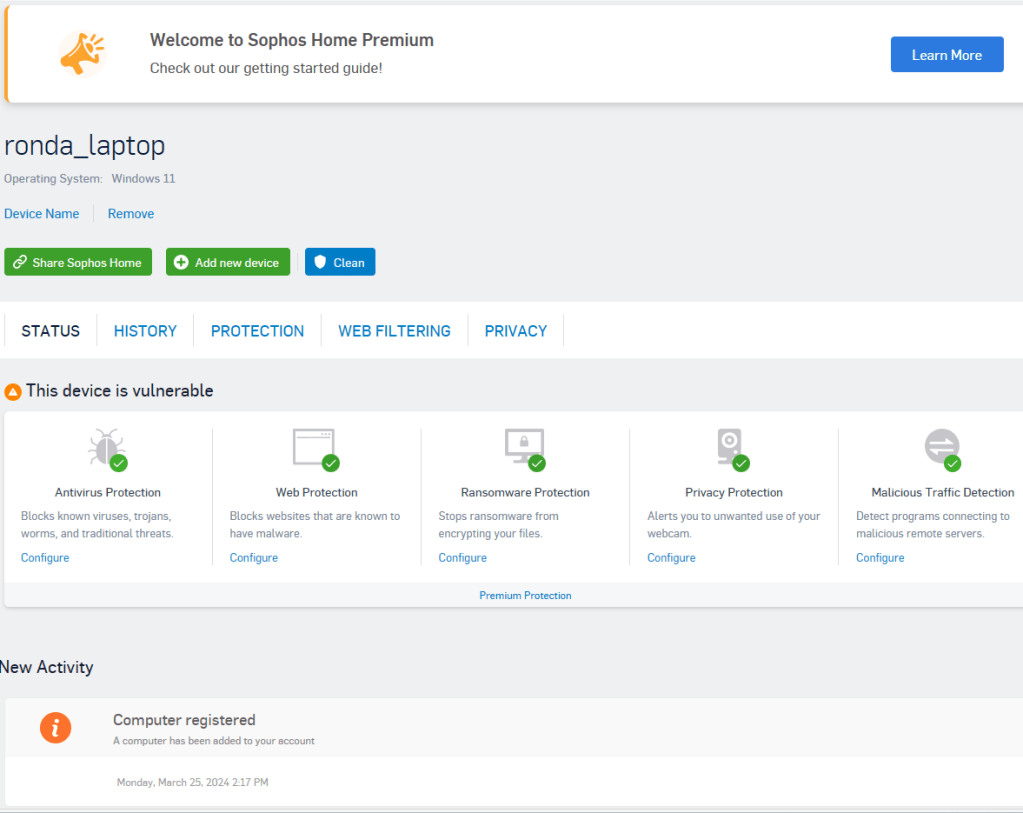
As you can see there are several new things. They each have a link to configure them.
Antivirus protection – the green check shows that it is installed and protected. To manage it, click the Configure link

Web Protection – the green check shows that it is installed. To manage it click the configure link
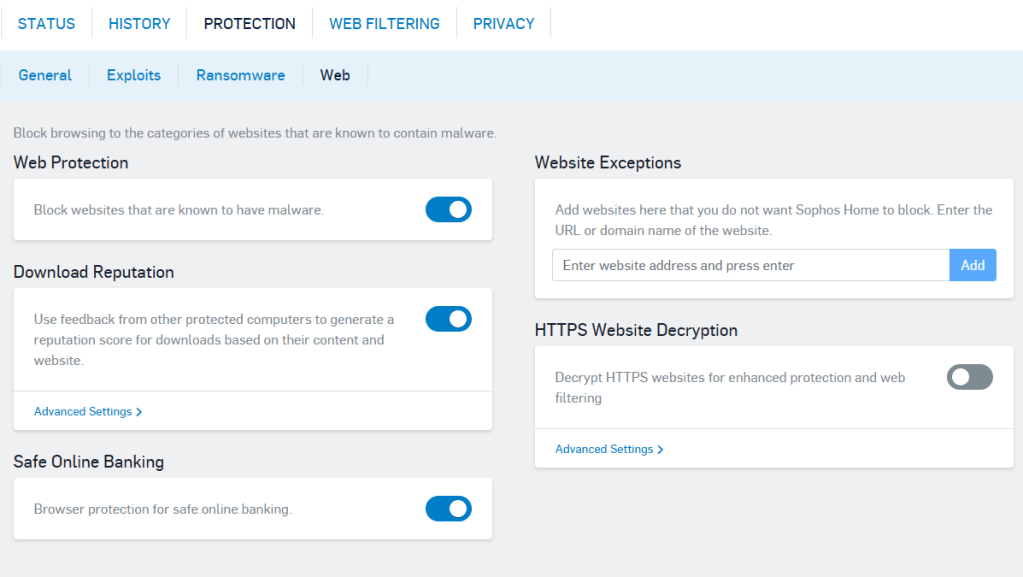
You also will want to click on the WEB FILTERING blue link at the top to configure categories you want blocked.
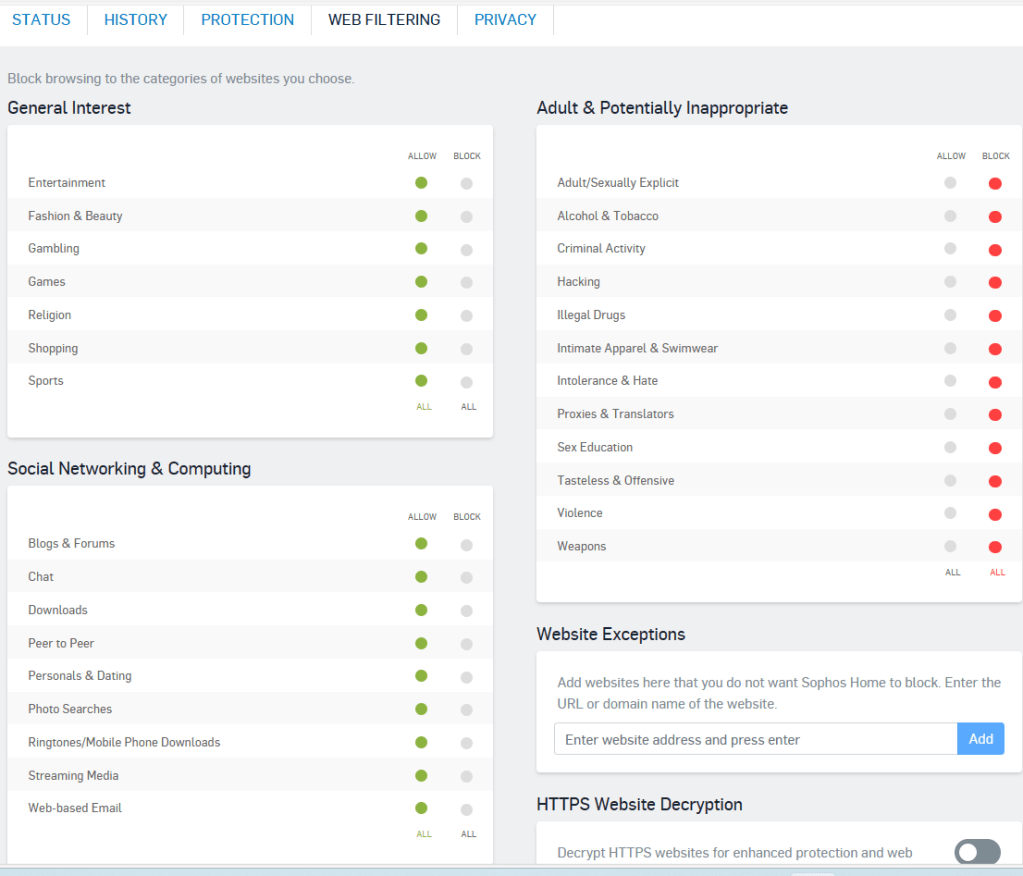
Here is my recommendations. By default, everything is allowed, so you will need to click block on all or individual categories under Adult & Potentially Inappropriate sites. If you find a needed site you can always add it to the Website exceptions field and click Add to allow access to it.
Ransomware Protection, click Manage

Privacy Protection, click configure

Malicious Traffic Detection, click ok to configure General.
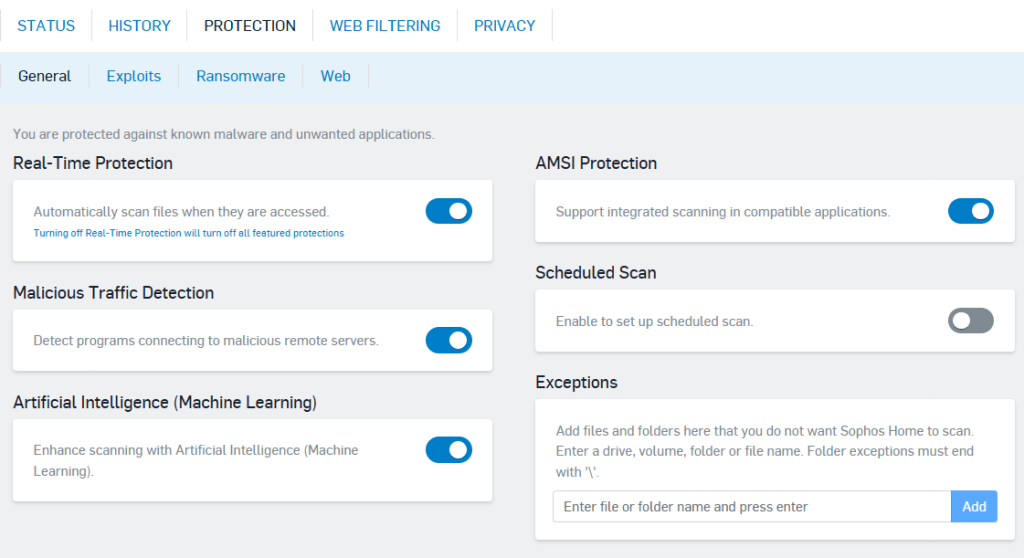
Scheduled Scan is turned off by default. It is not needed but if you want to schedule it here is where you do that.
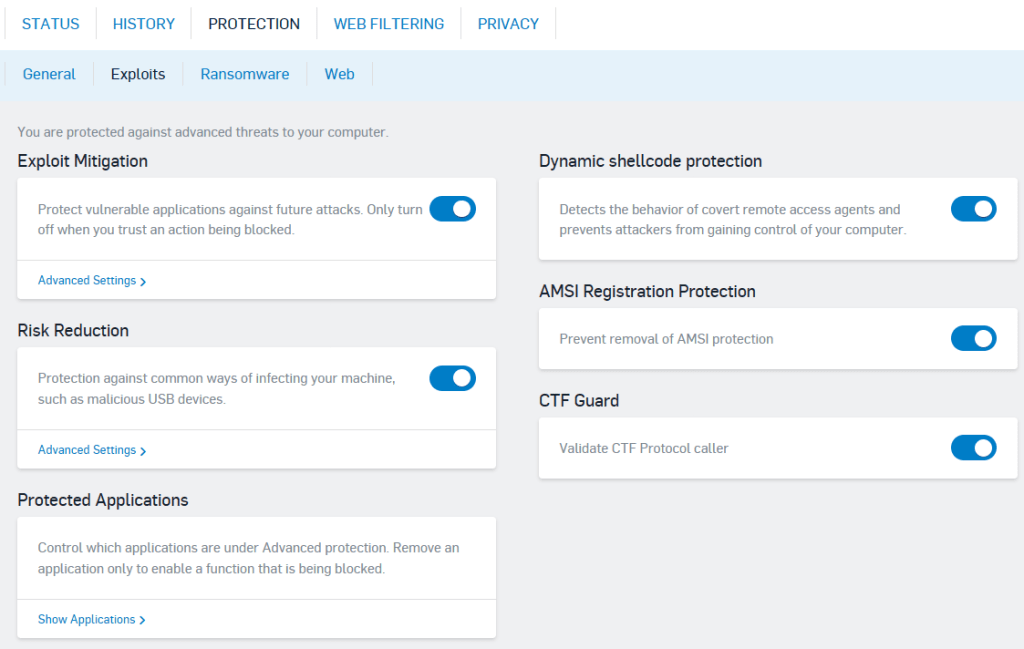
Click on Exploits link to configure additional settings. Some applications may trigger these and you will need to configure advanced settings or turn them off.
You’re off and running. Reach out if you need licenses or assistance.
 INTUITIVE TECHNOLOGIES